Table of Contents
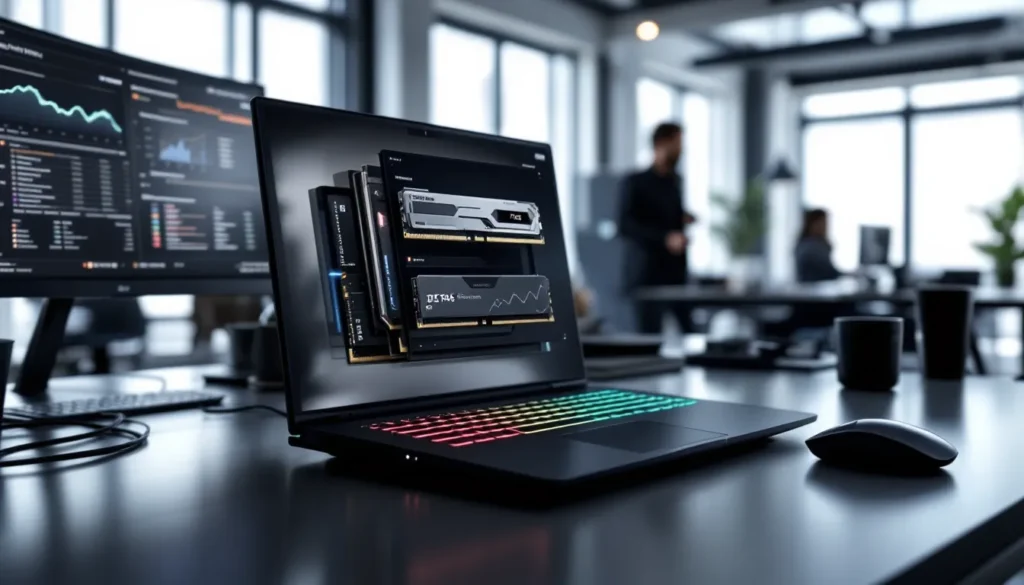
ToggleYou’ve got a beast of a GPU, a blazing-fast processor, and the latest display tech, but if your RAM is holding you back, you’re leaving frames on the table. Gaming laptop RAM isn’t just about hitting minimum specs anymore. In 2026, with open-world titles pushing system boundaries and competitive games demanding silky-smooth responsiveness, understanding your memory setup can mean the difference between stuttering through a firefight and maintaining that crucial 144+ FPS. This guide cuts through the marketing noise to deliver exactly what you need to know about capacity, speed, configurations, and upgrades. Whether you’re spec’ing out a new rig or wondering if your current setup needs a boost, you’ll walk away with actionable answers.
Key Takeaways
- Gaming laptop RAM capacity directly impacts frame stability and load times—16GB DDR5-5600 in dual-channel configuration is the optimal balance for most gamers in 2026.
- Dual-channel RAM configuration delivers 15-30% higher FPS compared to single-channel with identical capacity, making it the most impactful performance-per-dollar upgrade for gaming laptops.
- Modern AAA titles and open-world games like Star Citizen and Microsoft Flight Simulator require 32GB RAM for smooth performance, while competitive esports games prioritize RAM speed and tight timings over capacity.
- DDR5 has matured significantly by 2026 and is now the standard for new gaming laptops, offering better future-proofing than DDR4, which is aging out of platform support.
- RAM upgrades in gaming laptops are straightforward for fully upgradeable models with SO-DIMM slots and can be completed in 15-30 minutes, delivering significant performance gains without replacing the entire system.
What Is Gaming Laptop RAM and Why Does It Matter?
RAM (Random Access Memory) is your system’s short-term memory, the workspace where your laptop stores data it needs to access instantly. Unlike storage drives that hold files long-term, RAM holds active game assets, textures, AI routines, and background processes that need lightning-fast retrieval. When you load into a match or explore a new area in an open-world game, your system pulls data from storage into RAM where it can be accessed in nanoseconds instead of milliseconds.
Think of it this way: your SSD is a library, your RAM is your desk. The bigger your desk, the more books (game assets) you can have open simultaneously without constantly running back to the shelves. Insufficient RAM forces your system into constant swapping, pulling data from storage on-the-fly, which kills performance and causes stuttering.
How RAM Affects Gaming Performance
RAM capacity directly impacts frame stability, load times, and your ability to multitask while gaming. When you run out of available RAM, Windows creates a page file on your SSD, essentially using storage as emergency RAM. This is catastrophically slow compared to actual memory, causing frame drops, texture pop-in, and hitching during crucial moments.
In real-world scenarios, insufficient RAM manifests as:
- Frame drops during asset-heavy scenes (explosions, large crowds, detailed environments)
- Extended load times between levels or fast-travel points
- Stuttering when streaming, recording, or running Discord alongside your game
- Texture pop-in where low-res textures load first, then upgrade seconds later
Games like Star Citizen and Microsoft Flight Simulator can consume 20GB+ during peak usage. Running these on 8GB systems results in unplayable performance regardless of your GPU.
RAM vs. VRAM: Understanding the Difference
Here’s where confusion happens. RAM is system memory accessible to your CPU and all applications. VRAM (Video RAM) lives on your GPU and exclusively handles graphics data, textures, shaders, frame buffers, and rendering pipelines.
You can’t substitute one for the other. A laptop with 32GB RAM but 4GB VRAM will still choke on max texture settings in modern titles because the GPU memory fills up. Conversely, 8GB VRAM won’t compensate for insufficient system RAM when your game needs to load AI routines, physics calculations, and world data.
Both work in tandem. Your system RAM feeds data to VRAM, which the GPU processes for rendering. Bottlenecking either creates performance issues, but they’re distinct components requiring separate consideration when spec’ing or upgrading a gaming laptop.
How Much RAM Do You Actually Need for Gaming in 2026?
The ‘how much RAM’ question doesn’t have a universal answer, it depends on what you play, how you play, and what else you’re running. Let’s break it down by capacity tier with real-world context.
8GB RAM: Is It Still Enough?
Short answer: no, not for modern gaming. 8GB was the baseline for 1080p gaming back in 2018-2020, but it’s aged out. Most current AAA titles list 16GB as recommended, and running 8GB means you’re constantly flirting with the performance cliff.
Windows 11 itself consumes 4-5GB at idle with typical background apps (Discord, browser tabs, RGB software). That leaves maybe 3GB for your actual game, forcing constant page file usage. Competitive esports titles like Valorant or CS2 technically run on 8GB, but you’ll experience stuttering if you have anything else open, including streaming software or even Spotify.
The only scenario where 8GB makes sense in 2026: ultra-budget builds exclusively for older esports titles with zero multitasking. Otherwise, it’s a false economy that’ll require an upgrade within months.
16GB RAM: The Sweet Spot for Most Gamers
16GB remains the goldilocks zone for gaming laptops in 2026. It handles:
- Modern AAA titles at high/ultra settings without memory bottlenecks
- Light multitasking (game + Discord + browser with 5-10 tabs)
- Streaming to platforms like Twitch at 1080p60 without major frame impact
- Most current-gen console ports, which are optimized around 16GB total system memory
Games specifically optimized for 16GB include Cyberpunk 2077, Elden Ring, Baldur’s Gate 3, and virtually all competitive multiplayer titles. Major publishers benchmarking gaming performance consistently show negligible gains moving from 16GB to 32GB in titles released before 2025.
For the average gamer who plays a mix of genres, streams occasionally, and keeps Discord running, 16GB delivers excellent value without overspending on capacity they won’t use.
32GB RAM and Beyond: When More Makes Sense
You need 32GB if you fit these profiles:
Content creators: Simultaneous gaming and recording at high bitrates, or editing footage between sessions. OBS Studio with multiple sources, overlays, and effects can consume 4-6GB alone.
Simulation enthusiasts: Microsoft Flight Simulator, Star Citizen, and Cities: Skylines II with heavy mods actively benefit from 32GB. These titles load massive environments with complex simulation layers that exceed 16GB during normal play.
Heavy multitaskers: Gamers running virtual machines, multiple monitors with dozens of browser tabs, or development environments alongside their games.
Future-proofing: If you’re buying a laptop you plan to keep for 4-5 years, 32GB provides headroom as recommended specs creep upward. Indiana Jones and the Great Circle (late 2024) recommends 32GB for ultra settings at 4K, signaling where AAA development is trending.
Beyond 32GB? There’s essentially zero gaming benefit. 64GB is for professional workloads, 3D rendering, video production, massive dataset analysis. No game in 2026 leverages that capacity.
DDR4 vs. DDR5: Which RAM Type Should You Choose?
The RAM generation in your laptop affects more than just speed, it determines platform compatibility, upgrade paths, and long-term value. Here’s the 2026 landscape.
Performance Differences Between DDR4 and DDR5
DDR5 launched in late 2021 alongside Intel’s 12th-gen and AMD’s Ryzen 7000 series processors. By 2026, it’s matured significantly with better availability and lower prices than its rocky launch period.
Key technical differences:
- Bandwidth: DDR4 tops out around 3200-3600 MT/s (megatransfers per second) for most gaming laptops. DDR5 starts at 4800 MT/s and gaming kits commonly hit 5600-6400 MT/s.
- Voltage: DDR5 runs at 1.1V versus DDR4’s 1.2V, reducing power draw and heat, meaningful for laptop battery life.
- Channel architecture: DDR5 implements dual 32-bit channels per module versus DDR4’s single 64-bit channel, improving efficiency in multi-threaded workloads.
Real-world gaming impact? In pure FPS terms, DDR5 shows 3-8% gains in CPU-bound scenarios at 1080p with high-end GPUs (RTX 4080/4090 mobile). At 1440p or 4K where you’re GPU-limited, the difference shrinks to margin-of-error territory. Games with large open worlds and heavy asset streaming, like Starfield or The Witcher 4, show more noticeable 1% low improvements with DDR5, meaning fewer frame drops during intensive scenes.
Recent gaming laptop testing confirms that DDR5-5600 delivers measurably smoother frame pacing compared to DDR4-3200 in titles like Hogwarts Legacy and Resident Evil 4 Remake, even when average FPS appears similar.
Price and Availability Considerations
In 2026, DDR5 has largely closed the price gap. Entry-level gaming laptops still ship with DDR4 to hit aggressive price points ($800-1100 range), while mid-range and premium models ($1200+) predominantly feature DDR5.
Key considerations:
Future-proofing: New laptop platforms from Intel (15th-gen Core Ultra and beyond) and AMD (Ryzen 8000/9000 mobile) are DDR5-exclusive. DDR4 systems lock you into older platform architectures with limited upgrade paths.
Availability: If your laptop supports RAM upgrades, DDR5 SO-DIMM modules are now widely available from major manufacturers (Crucial, Kingston, Corsair, G.Skill). Prices for 32GB DDR5-5600 kits hover around $120-150 compared to $80-100 for DDR4-3200.
The verdict: If buying new in 2026, prioritize DDR5 unless budget absolutely demands DDR4. The performance delta is modest today but will widen as games are developed with DDR5 baseline specs in mind. DDR4 systems will age faster in terms of platform support and optimization.
RAM Speed and Timing: What Gamers Need to Know
Beyond capacity and generation, RAM performance comes down to two specs: speed (MHz/MT/s) and latency (CAS timings). Understanding these helps you evaluate whether that expensive ‘gaming RAM’ is worth the premium.
Understanding MHz Ratings
RAM speed, technically measured in MT/s (megatransfers per second) but often labeled as MHz, indicates how many data cycles the memory completes each second. Higher numbers mean more data throughput.
Common gaming laptop speeds in 2026:
- DDR4: 2666 MT/s (budget), 3200 MT/s (standard), 3600 MT/s (enthusiast)
- DDR5: 4800 MT/s (base), 5600 MT/s (mainstream), 6400+ MT/s (high-end)
Does faster RAM boost FPS? Sometimes. AMD’s Ryzen processors benefit more from RAM speed due to their Infinity Fabric architecture, which directly scales with memory speed. Intel CPUs show smaller gains but still improve, particularly in memory-intensive games.
Practical impact: jumping from DDR4-2666 to DDR4-3200 can yield 5-10 FPS in CPU-limited scenarios. Going from 3200 to 3600 nets maybe 2-3 FPS, diminishing returns territory. For DDR5, the jump from 4800 to 5600 shows similar modest improvements, while 6400+ is mostly for benchmarking bragging rights.
One caveat: laptop manufacturers sometimes lock RAM speeds in BIOS regardless of what modules you install. Always verify whether your specific laptop model supports advertised speeds via XMP/EXPO profiles or manual tuning.
CAS Latency and Its Impact on Gaming
CAS latency (CL) measures the delay between the memory controller requesting data and RAM delivering it. It’s expressed in clock cycles, CL16, CL18, CL40, etc. Lower numbers mean faster response.
Here’s the twist: latency needs to be evaluated relative to speed. A DDR4-3200 CL16 module and a DDR5-6400 CL32 module have nearly identical absolute latency (nanoseconds) even though different CL numbers, because the DDR5 module completes cycles twice as fast.
Formula for true latency: (CL / speed) × 2000 = latency in nanoseconds
- DDR4-3200 CL16: (16/3200) × 2000 = 10ns
- DDR5-5600 CL40: (40/5600) × 2000 = 14.3ns
- DDR5-6400 CL32: (32/6400) × 2000 = 10ns
In gaming terms, tighter timings improve frame consistency and reduce stuttering more than they boost raw FPS. Competitive players notice the difference in fast-paced shooters where input lag stacks across peripherals, display, and system latency.
For most gamers, chasing the tightest timings isn’t cost-effective. A DDR5-5600 CL40 kit delivers 95% of the performance of a DDR5-6400 CL32 kit at significantly lower cost. Prioritize capacity and speed within budget, then worry about timings if everything else is optimized.
Dual-Channel vs. Single-Channel RAM Configuration
This is the single most impactful RAM configuration choice after capacity, and it’s frequently overlooked when buying or upgrading gaming laptops.
Single-channel: One RAM module installed (e.g., 1×16GB). The memory controller accesses one 64-bit data path.
Dual-channel: Two modules installed in matched pairs (e.g., 2×8GB). The controller accesses two parallel 64-bit paths simultaneously, doubling effective bandwidth.
Performance impact? Massive. Dual-channel RAM can deliver 15-30% higher FPS in gaming compared to single-channel with identical capacity and speed. It’s not a subtle difference, it’s often the gap between 45 FPS and 60 FPS, or 100 FPS and 130 FPS.
Why the huge delta? Integrated graphics (like AMD’s RDNA-based iGPUs or Intel’s Arc graphics) share system RAM for VRAM. Dual-channel effectively doubles GPU memory bandwidth, directly boosting graphics performance. Even with discrete GPUs (RTX 4060/4070/4080 mobile), the CPU still benefits from doubled memory bandwidth for game logic, AI, physics, and asset streaming.
Real-world example: an RTX 4060 laptop with single-channel DDR5-5600 performs like an RTX 4050 in many titles. Switching to dual-channel resurrects that lost performance without any other hardware changes.
Critical laptop consideration: Some manufacturers ship gaming laptops with single-channel RAM to cut costs (one 16GB module instead of 2×8GB). Always check reviews or spec sheets. If your laptop has two SO-DIMM slots but only one is populated, adding a matching module is the single best performance-per-dollar upgrade available.
For soldered RAM laptops, verify dual-channel configuration before purchase, you can’t change it later. Look for mentions of “2×8GB” or “dual-channel” in specifications. If it just says “16GB RAM” without configuration details, assume single-channel until proven otherwise.
How to Check Your Gaming Laptop’s RAM Specs
Before upgrading or troubleshooting, you need to know exactly what RAM you’re working with. Here are the quickest methods:
Windows Task Manager (fastest method):
- Right-click taskbar and select Task Manager (or Ctrl+Shift+Esc)
- Navigate to Performance tab
- Click Memory in the left sidebar
You’ll see:
- Total capacity and speed (e.g., 16GB DDR5-5600)
- Current usage and available memory
- Slots used (e.g., “2 of 2” means both slots occupied)
- Form factor (should show SODIMM for laptops)
CPU-Z (detailed specs):
Download the free utility CPU-Z for granular information:
- DDR generation and exact speed
- CAS latency timings
- Voltage
- Manufacturer and part numbers
- Channel configuration (single vs. dual)
System Information:
- Press Win+R, type
msinfo32, hit Enter - Look for “Installed Physical Memory” and “Total Physical Memory”
This method shows capacity but limited technical details.
BIOS/UEFI:
Restart and enter BIOS (usually F2, Del, or F10 during boot). Most gaming laptop BIOS displays:
- RAM capacity per slot
- Speed and voltage
- Whether XMP/EXPO profiles are enabled
Command prompt:
Open CMD and type: wmic memorychip get capacity, speed, memorytype, formfactor
This outputs technical specs for each installed module in a table format.
Physical inspection:
If you’re comfortable opening your laptop, RAM modules have labels showing:
- Capacity (8GB, 16GB, etc.)
- Type (DDR4/DDR5)
- Speed (3200, 5600, etc.)
- Manufacturer and model number
For soldered RAM, specifications are only accessible through software tools, there’s nothing to physically inspect beyond the motherboard itself.
Can You Upgrade RAM in a Gaming Laptop?
Unlike desktops where RAM upgrades are universal, gaming laptops fall into three categories: fully upgradeable, partially upgradeable, or completely soldered. Knowing which you have determines your options.
Checking If Your Laptop Supports RAM Upgrades
Check manufacturer specifications: Look up your exact laptop model on the manufacturer’s website or Laptop Mag reviews that detail upgrade options. Search for terms like “user-accessible RAM” or “SO-DIMM slots.”
Common configurations:
- Two SO-DIMM slots: Fully upgradeable. You can replace both modules with higher capacity or faster RAM (within chipset limits).
- One slot + soldered: Hybrid design. You can upgrade the socketed module but are stuck with whatever’s soldered. Common in thin-and-light gaming laptops.
- Fully soldered: No upgrade possible. RAM is permanently attached to the motherboard. Increasingly common in ultra-thin models prioritizing size over serviceability.
Physical inspection:
Remove the bottom panel (usually 5-10 Phillips screws). Look for:
- Rectangular modules with notched connectors = SO-DIMM slots (upgradeable)
- RAM chips directly soldered to motherboard = no upgrade path
- Access panels specifically for RAM (some laptops have dedicated doors)
BIOS/system info:
Check slots used in Task Manager. “1 of 2” or “2 of 4” indicates available slots. “2 of 2” might mean both slots filled or dual-channel soldered RAM, physical inspection confirms which.
Key limitation: DDR4 and DDR5 are incompatible. You cannot upgrade DDR4 laptops to DDR5, they require different slots and platform support. Upgrades must match your existing RAM generation.
Step-by-Step Guide to Upgrading Gaming Laptop RAM
Before starting:
- Verify compatible RAM type (DDR4 vs. DDR5, maximum supported speed)
- Purchase matching modules for dual-channel configuration
- Back up important data (RAM upgrades rarely cause issues, but better safe)
- Ensure warranty status (some manufacturers void warranties for user upgrades)
Tools needed:
- Phillips head screwdriver (usually #0 or #1)
- Anti-static wrist strap (optional but recommended)
- Plastic pry tool for panel clips
Installation steps:
- Power down completely (not sleep/hibernate) and unplug AC adapter.
- Remove battery if externally accessible. For internal batteries, proceed carefully.
- Ground yourself by touching an unpainted metal surface to discharge static.
- Remove bottom panel: Unscrew all fasteners (some may be hidden under rubber feet or warranty stickers). Gently pry panel clips with plastic tool, never force.
- Locate RAM slots: Usually near the center or edge of the motherboard, sometimes under a small shield.
- Remove existing RAM: Push metal retention clips outward on both sides simultaneously. Module will pop up at ~30° angle. Pull straight out from the slot.
- Install new RAM: Insert module at ~30° angle, aligning the notch with the slot key (prevents backward installation). Press down firmly until retention clips snap into place on both sides.
- Verify installation: Ensure modules are fully seated and clips are engaged. No gold contacts should be visible.
- Replace panel: Reverse removal process, ensuring all clips and screws are secure.
- Power on and verify: Boot to BIOS or Windows, check Task Manager confirms new capacity and dual-channel configuration.
Troubleshooting: If the laptop doesn’t boot or beeps:
- Reseat RAM modules (remove and reinstall)
- Try one module at a time to identify faulty stick
- Verify RAM is compatible with laptop’s chipset specs
- Clear CMOS if available (rare in laptops)
For first-time upgraders, the process takes 15-30 minutes. It’s one of the safest and highest-impact hardware upgrades available for gaming laptops.
Common RAM Issues and Troubleshooting Tips
Even properly configured RAM can cause headaches. Here’s how to diagnose and fix the most frequent issues gamers encounter.
Blue Screen of Death (BSOD) with memory errors:
Symptoms: Random crashes with error codes like MEMORY_MANAGEMENT or SYSTEM_SERVICE_EXCEPTION.
Fixes:
- Run Windows Memory Diagnostic (search “Windows Memory Diagnostic” in Start menu, restart to test)
- Reseat RAM modules, thermal cycling can loosen connections over time
- Test each module individually to isolate faulty stick
- Check for BIOS updates addressing memory compatibility
- Reduce RAM speed in BIOS if running XMP/EXPO profiles (sometimes modules can’t sustain rated speeds under load)
Game crashes or freezes during intense scenes:
Symptoms: Stable during light usage but crashes in specific games during asset-heavy moments.
Fixes:
- Monitor RAM usage during gaming with MSI Afterburner overlay. If usage exceeds 90%, you’re hitting capacity limits
- Close background apps (browsers, RGB software, launchers you’re not using)
- Lower texture quality settings to reduce VRAM pressure, which can cascade into system RAM demand
- Check for memory leaks (RAM usage climbing continuously during play). Game updates or reinstallation usually fix these
System not recognizing full RAM capacity:
Symptoms: 16GB installed but Windows shows 8GB or “hardware reserved” memory.
Fixes:
- Verify you’re running 64-bit Windows (32-bit OS only addresses 4GB)
- Check if one module isn’t seated properly or is in the wrong slot
- Disable integrated graphics memory reservation in BIOS if not used (some laptops allocate 1-2GB for iGPU even with discrete GPU active)
- Run memory test to confirm both modules are detected
Poor performance even though adequate RAM:
Symptoms: Sufficient capacity but stuttering or low FPS persist.
Fixes:
- Confirm dual-channel operation (single-channel is the #1 overlooked performance killer)
- Check Task Manager Performance tab for memory speed. If DDR5-5600 modules run at 4800, enable XMP/EXPO in BIOS
- Monitor for RAM speed throttling due to overheating (rare but happens in poorly ventilated laptops)
- Run malware scan, cryptominers and bloatware consume RAM and CPU in background
Incompatible RAM after upgrade:
Symptoms: Laptop won’t boot after installing new modules, or runs at reduced speed.
Fixes:
- Verify modules match chipset specifications (some Intel 13th-gen systems won’t boot with DDR5-6400+ without BIOS updates)
- Confirm matching voltage (DDR4 comes in 1.2V and 1.35V variants, mixing causes issues)
- Try single module to rule out bad stick
- Reset BIOS to defaults, then gradually re-enable performance features
Testing RAM stability:
For thorough testing beyond Windows tools:
- MemTest86: Boot from USB, tests memory hardware independently of OS (3-4 hour full test recommended)
- Prime95 blend test: Stresses CPU and RAM together, catches instability under realistic load
- Game-specific stress testing: Run known memory-intensive titles (Star Citizen, MSFS, modded Skyrim) for extended sessions
One final note: RAM failures are relatively rare. If you’re experiencing frequent crashes, verify your GPU drivers, check thermals, and test your SSD health before blaming RAM. Memory issues usually manifest as sudden crashes or complete failure to boot, not gradual performance degradation.
Best RAM Configurations for Popular Games in 2026
Different genres have vastly different memory requirements. Here’s what actually matters for the games you’re playing right now.
Battle Royale Games (PUBG Mobile PC Emulator, Fortnite, Warzone)
Minimum viable: 16GB DDR4-3200 dual-channel
Recommended: 16GB DDR5-5600 dual-channel
Battle royale titles prioritize fast asset streaming as you traverse large maps with 100+ players. They’re more CPU-intensive than GPU-bound at competitive settings (low/medium graphics for maximum FPS).
PUBG Mobile PC emulators (like GameLoop or BlueStacks) are Android virtualization layers running on top of Windows. They consume 4-6GB for the emulator environment alone before loading the game. 16GB handles this comfortably with browser tabs and Discord.
Fortnite post-Unreal Engine 5.3 update (Chapter 5) benefits from faster RAM speeds. Testing shows DDR5-5600 delivers 8-12% better 1% lows compared to DDR4-2666, reducing stuttering during hot drops and build fights.
Warzone (particularly Warzone 2.0/Modern Warfare III iteration) recommends 16GB but actually benefits from 32GB if you’re streaming or recording. The game’s texture streaming can spike RAM usage to 14-15GB during intense Verdansk firefights with multiple squads rendering simultaneously.
Optimization tip: Close shader compilation during initial loads, Warzone pre-caches shaders consuming significant RAM temporarily.
AAA Titles and Open-World Games
Minimum viable: 16GB DDR4-3200 dual-channel
Recommended: 32GB DDR5-5600 dual-channel
This is where capacity matters most. Games like Star Citizen, Microsoft Flight Simulator, Cyberpunk 2077, and The Witcher 4 (releasing late 2026) load massive detailed environments with complex NPC routines and physics.
Star Citizen in particular infamously recommends 32GB for smooth play. The game streams vast space stations and planetary surfaces with near-zero loading screens, keeping multiple zones active in memory simultaneously. 16GB results in constant hitching as the game swaps assets.
Microsoft Flight Simulator with high-end terrain and traffic settings can consume 24GB+ RAM when flying over photogrammetry cities. Running this on 16GB severely limits visual fidelity and streaming quality.
Cyberpunk 2077 post-2.0 update and Phantom Liberty DLC scales nicely with 32GB, allowing ultra textures without VRAM/RAM juggling. Path tracing at 1440p+ particularly benefits from the extra headroom.
Modding consideration: Heavily modded Skyrim, Fallout 4, or The Witcher 3 can exceed 20GB RAM with high-res texture packs, script extenders, and overhaul mods. If you’re running 200+ mod load orders, 32GB is mandatory.
Competitive Esports Titles
Minimum viable: 16GB DDR4-3200 dual-channel
Optimal: 16GB DDR5-6000+ dual-channel with tight timings (CL30-36)
Games like Valorant, CS2, League of Legends, Dota 2, and Rainbow Six Siege don’t need capacity, they need speed and low latency.
Competitive players chase maximum frame rates (240+ FPS on high-refresh displays) with minimal frame time variance. Fast RAM reduces memory-related latency, contributing to the overall input lag chain from mouse click to pixel response.
Counter-Strike 2 (Source 2 engine) shows measurable gains with DDR5-6000+ versus DDR4-3200, particularly for 1% and 0.1% low FPS, the metric that determines how smooth the game feels rather than just average FPS.
Valorant is so lightweight that even 8GB technically works, but 16GB ensures zero background process interference. The game’s anti-cheat (Vanguard) is memory-resident and doesn’t play nice with maxed-out RAM conditions.
Configuration priority: Dual-channel is non-negotiable. Single-channel cuts performance by 15-25% in CPU-limited scenarios (exactly where you operate when targeting 240+ FPS).
Diminishing returns: Going from 16GB to 32GB provides zero benefit for competitive titles. Invest savings into a better GPU, higher refresh display, or lower-latency peripherals instead.
Conclusion
Gaming laptop RAM isn’t about chasing the highest number on the spec sheet, it’s about matching capacity, speed, and configuration to how you actually game. For most players in 2026, 16GB DDR5-5600 in dual-channel configuration hits the sweet spot between cost and performance. Budget builders can still make DDR4 work, but the platform is on its way out. If you’re into simulation games, heavy modding, or content creation, 32GB eliminates memory as a bottleneck entirely.
The easiest wins? Verify you’re running dual-channel, close unnecessary background apps, and don’t sleep on that second RAM slot if your laptop shipped with single-channel memory. Those simple checks deliver frame rate improvements without spending a dollar. And if you’re spec’ing a new laptop, prioritize upgradability, soldered RAM locks you into day-one specs for the machine’s entire lifespan. Your games will keep demanding more. Make sure your laptop can keep up.